CORESense supports multiple shipping addresses per order. However, to create orders through the website or SOI with multiple shipping addresses, the feature needs to be activated. Contact CORESense Support to have this feature activated. Both Shipping and Billing addresses can be updated from within an order using the Order Manager.
This section explains how to update the order billing address fields, select another address stored within the system, and how to create a new address to save in the system.
Path: Orders > Order Manager > Billing
|
Step |
Action |
|
1 |
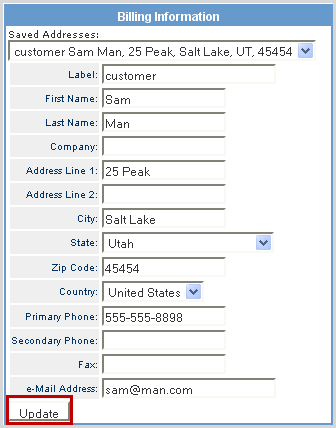
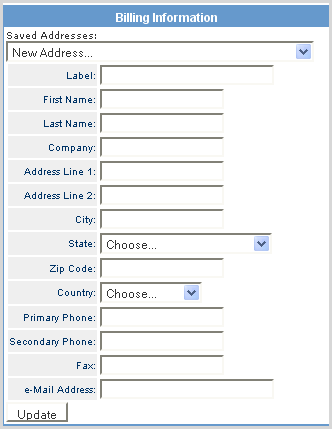
On the Billing page of the Order Manager, any of the fields in the Billing Information box can be edited directly. Make the necessary changes and click Update.
|
|
2 |
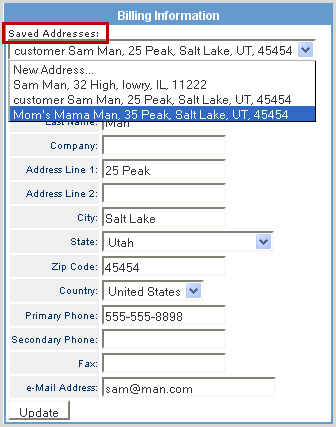
To change the current address to another address already on record, click on the Saved Addresses drop-down and select the desired address from the list and click Update.
|
|
3 |
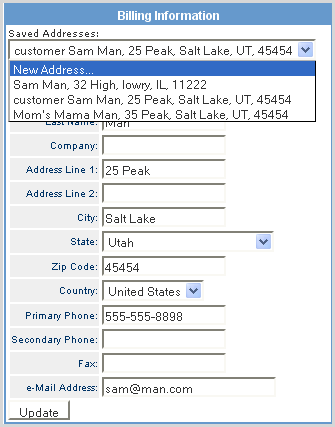
To add a new address to the system, click on the Saved Addresses drop-down and select the New Address option.
|
|
4 |
The fields are cleared so that you can enter the new information. Once the address is complete, click on Update to save the address so that it is available in the drop-down list for future use. |
This section explains how to change the order shipping address to another address stored within the system, and how to create a new address.
Path: Orders > Order Manager > Shipping
Important: Updating the order shipping address does not update the shipping address in UPS WorldShip, True Ship, Malvern or other 3rd party shipping software for shipments previously exported during the picking, packing and shipping process. If the shipments have already been exported, but have yet to be shipped, it is recommended to manually update the shipping software with the new shipping address. In the case of FedEx, no updates are required if the shipping label is printed directly from the CORESense Back Office using real-time shipping address information.
|
Step |
Action |
|
1 |
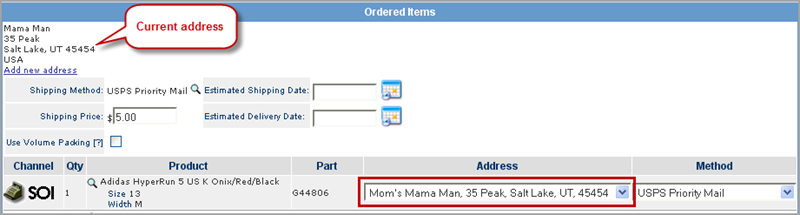
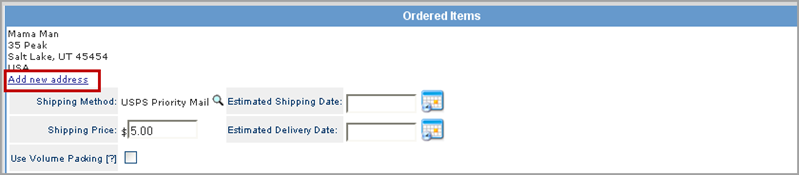
From the Shipping tab, view the current shipping address in the top left section of the Ordered Items box. To select a stored address, click on the drop-down list under the Address column and select an address.
|
|
2 |
If you have multiple items in the order, you need to select the address for each item unless you plan to send multiple shipments. Click Update Addresses. |
|
3 |
To add a new address, click the Add new address link.
|
|
4 |
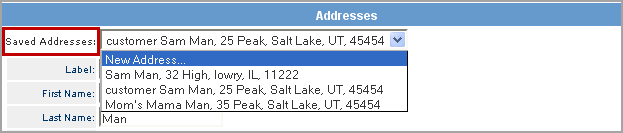
Select the New Address option from the Saved Addresses drop-down list.
|
|
5 |
The fields are cleared so that you can enter the new information. Once the address is complete, click on Update to save the address so that it is available in the drop-down list for future use.
|
© 2023 CORESense · info@coresense.com · 125 High Rock Avenue, Saratoga Springs, NY 12866