
Within the Order History Detail plug-in, Order Shipping details are displayed by separating them according to Ship To Address and/or Shipping Method.
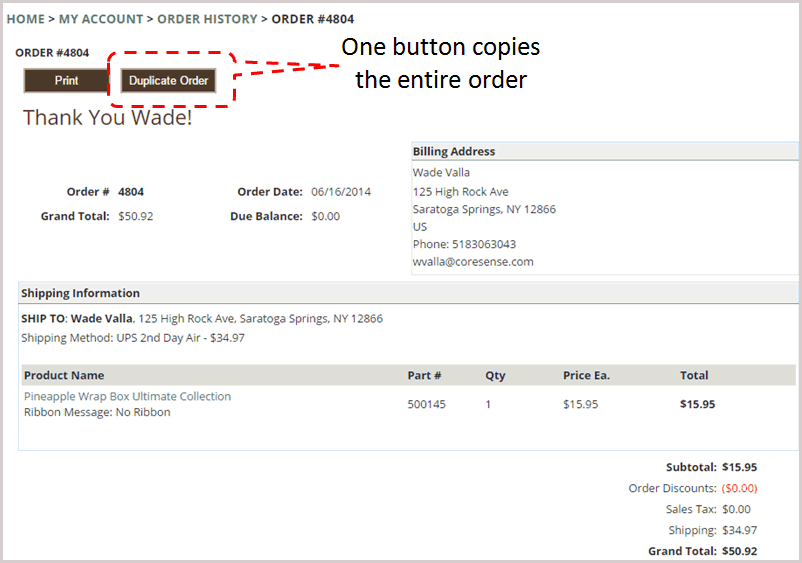
A "Duplicate Order" button has been added in the header of the order history detail screen. When clicked, it attempts to add all of the previous order items to the user's current cart.
If any item is no longer active, then an error message displays: "<part number>-<product name> is not currently available."
An error does not abort the process; instead the remaining order items are attempted to be added individually.
The following information is carried over for each duplicated item:
The column, labeled "Order Discounts" in the order history plug-in displays the sum of item promotions and adjustments. This field is the sum of promotions and adjustments for the item.
Duplicate an order from the customer's order history. This is useful for seasonal gift merchants, but also for consumable goods (supplies), or items with extensive configurations to simplify reordering
|
Step |
Action |
|
1 |
Use the "Duplicate Order" button in the header of the order history detail screen. When clicked, it attempts to add all of the previous order items to the user's current cart. |
|
2 |
If any item is no longer active, then an error message displays: "<part number>-<product name> is not currently available." |
|
3 |
An error does not abort the process; instead the remaining order items are attempted to be added individually. |
|
4 |
The following information is carried over for each duplicated item:
|
|
5 |
Enter "{duplicate_order}" where you want the plug-in button to appear. For example, in the "order_listing_row." The template tag should include the following: </td> |
|
6 |
Save and Preview to verify alignment of button display. (Note: The order_balance tag is optional depending on your current display preferences.) |
|
7 |
Edit "order_listing_header" template tag to add a spacer <td> in the heading: Note: This spacing may already exist depending on your template setup. |
Customers can review previous order and then duplicate it.
© 2023 CORESense · info@coresense.com · 125 High Rock Avenue, Saratoga Springs, NY 12866