This solution explains how to calibrate your Thick Client POS Monitor
NOTE: When this function is triggered, the GUI will immediately be shutdown/restart so it is recommended that you close orders, or log out of the session first.
|
Step |
Action |
|
1 |
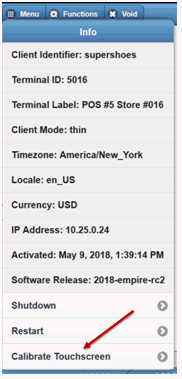
From the POS Menu, click on Info option. |
|
2 |
Click on the Calibrate Touchscreen option.
|
|
3 |
Click "OK" on the press a key to calibrate your touchscreen screen. |
|
4 |
Touch the four RED markers that display (one at a time) in each of the four corners of the screen. |
|
5 |
A "Success" message displays once completed and the screen returns back to the POS log. |
© 2023 CORESense · info@coresense.com · 125 High Rock Avenue, Saratoga Springs, NY 12866